
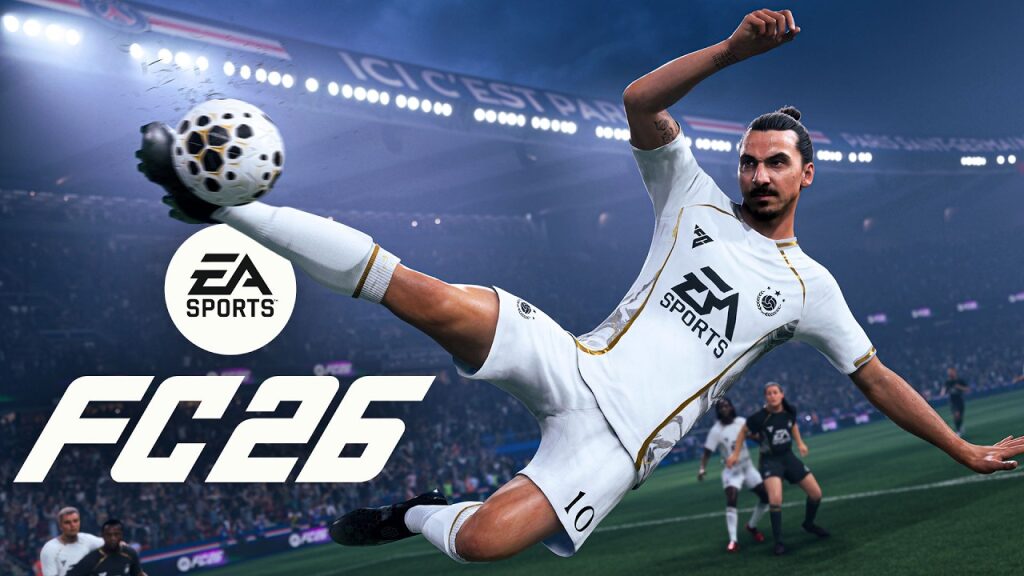
| Disable the music overlay from the audio settings in EA FC 26 by turning off the music notifications on the screen. |
| Check the user interface and hide the title banners in the game options. |
| Enable Broadcast Mode to avoid licensed music, ideal for streaming a video game. |
| Disable external overlays (Discord, Steam, GeForce, Radeon, Xbox Game Bar) that display pop-ups. |
| If banners return, reset the EA App/console cache and restart the game. |
A banner announcing a track may seem trivial. Yet, in the heart of a tight match, the music overlay that appears on the screen distracts, hides a passing lane, and breaks the rhythm. In EA FC 26, several levers allow you to regain sound control and interface management. The settings are reachable by controller, but only if you know the exact name and the right path. This guide brings together quick routes, the subtleties of audio settings, and pro tips for a clean display.
Amine, a Rivals player, won a decisive match after hiding these music notifications. First, he turned off the title banner. Then, he activated Broadcast Mode to avoid licensed tracks when streaming. Finally, he neutralized the Discord overlay that duplicated pop-ups. This method works on PS5, Xbox Series, and PC. Even better, it adapts to preferences: atmosphere is maintained, but banners are invisible. The following sections detail each option to avoid guesswork.
Disable the music overlay on screen in EA FC 26: the fastest route
The direct path is through the user interface and audio. Start from the Pause menu, then open Game Options. Next, go to Audio and locate the entries related to music notifications. Finally, disable the song banner.
- Pause Menu → Settings → Game Options
- Audio tab → set Music Notifications / Title Banner to Off
- Interface tab → hide on-screen information related to music
- Confirm, then restart the match to validate the effect
This route removes the overlay of track names without cutting all music. The field becomes readable again.
Audio and interface settings in EA FC 26: key display adjustments
Several sliders complement each other. Music Volume adjusts the ambiance, while Music Notifications controls the pop-ups. Broadcast Mode cuts or replaces licensed tracks, useful when streaming in the background. Finally, the User Interface section allows hiding non-essential info.
Here are the targeted settings for a clean display without losing the beat.
- Music Notifications: Turn off to remove the track banner from the screen.
- Title Banner / Music Pop-up: Off to remove the text overlay.
- Broadcast Mode: On to avoid copyrighted music, handy in competition and streaming.
- Music Volume: Adjust or mute if needed, without affecting commentary.
- Interface → On-screen Information: Hide residual musical info.
By combining these options, the overlay disappears and sound control gains in finesse.
PS5, Xbox Series, and PC: where to disable track banners
On PS5 and Xbox Series, the path remains identical: Game Options → Audio → turn off Music Notifications, then check Interface. On PC, the panel is the same, but a third-party overlay may reappear. So, you must check both the game and the system.
Concrete example: on PC, a player turns off the banner in the video game, but Steam still overlays a pop-up when a friend listens to a song. Simply remove the Steam overlay to fix the duplicate. The result is immediate in the match.
Turning off external on-screen overlays: Discord, Steam, GeForce, Radeon, Xbox Game Bar
If an alert persists, a system overlay is often the cause. The most common ones open via shortcuts. They must be disabled to avoid a second music overlay on the screen.
- Discord: Settings → Overlay → Disable “Enable in-game overlay”.
- Steam: Settings → In-Game → Disable Steam overlay (Shift+Tab).
- GeForce Experience: Settings → In-Game Overlay → Off (Alt+Z).
- AMD Radeon: Settings → Overlay → Off (Alt+R).
- Xbox Game Bar (Windows): Settings → Gaming → Game Bar → Off (Win+G).
After disabling, restart EA FC 26 to confirm. Only one overlay should control the display: either the game’s or none.
Pro tips: keep the atmosphere, remove the overlay
The goal is not always to mute the music. Many prefer to keep the menu energy while hiding the text. Activate Broadcast Mode during streams, then restore the music in career mode. Set up a sound control shortcut on headset or controller to lower the music in 1 click during corners.
Lina, a content creator, plays with commentary at 100, music at 30, and music notifications off. This way, crowd chants come through without the banner. Her stream stays clean and focus improves. This approach balances spectacle and performance.
Advanced troubleshooting: when the music overlay returns in the video game
A banner return after an update can occur. In that case, reapply the game options Audio/Interface. Then purge the EA App cache (PC) or restart the console. Update graphics drivers if an overlay persists.
Other useful tips: delete the settings config file to force regeneration, then check that two overlays do not overlap. Finally, test in Offline mode to isolate a network conflict. This routine resets the display cleanly.
Where is the option to disable the music overlay in EA FC 26?
Open Settings → Game Options → Audio and set Music Notifications or Title Banner to Off, then check Interface → On-screen Information.
Does Broadcast Mode cut all music?
No. It replaces or cuts licensed tracks for streaming. You can keep a low musical ambiance and hide banners.
Why do I still see a pop-up even though the game overlay is turned off?
A system overlay (Discord, Steam, GeForce, Radeon, Xbox Game Bar) may display on top. Disable it in its settings then restart the game.
Should I cut music to improve performance?
This is generally not necessary. Gains mainly come from disabling in-game overlays that reduce screen clutter.
My settings do not save, what should I do?
Reapply the options, close the game, clear the EA App cache (PC) or restart the console. Update and check write permissions of the configuration folder.